Common questions
Is Wandrr free?
Yes. You can plan up to two trips, share them, track budgets, keep a journal and use the Apple Watch app without paying. Wandrr Pro adds unlimited trips, live flight status and alerts, Safe Landings, AI planning and smart import.
Which devices does it work on?
iPhone, iPad and Apple Watch. The watch app installs alongside the iPhone app. AI features need a device that supports Apple Intelligence.
Where is my data stored?
On your device and in your own iCloud account. We don't keep your trips on our servers. The privacy policy has the details.
How do I cancel Wandrr Pro?
Subscriptions are handled by Apple. On your iPhone open Settings, tap your name, then Subscriptions, and choose Wandrr.
How do I delete my account?
In Wandrr, go to Settings and tap Delete Account. This removes your trips and data from your device and iCloud. It doesn't cancel an App Store subscription, so do that separately.
Something isn't working.
Email admin@cloratech.com, or use Send feedback in Wandrr's Settings, and we'll get back to you.
Plan your first trip
Destinations, dates and arrival times
Tap the + button
On the home screen, tap + in the top corner to start a new trip.
Short on inspiration?
Start from a template gives you a ready-made itinerary for six top cities, free. Tap Suggest with AI and it picks destinations to match your season, distance and interests. Or, if you've already booked something, Start from a booking reads a flight, hotel or ticket confirmation and fills in the destination and dates — you confirm the place on a map first.
Name it and add destinations
Give the trip a name, then add one or more cities. Each destination gets its own dates and arrival times — and you can edit any of it right there in the form.
Set arrival dates & times
Pick when you arrive and leave each place. The day planner opens right where your trip begins.
Let AI build your days
Turn on Build my trip with AI to fill each day with real places as the trip is created — or tap Get ideas on the trip screen anytime. Already travelling? It becomes Build the rest of my trip and leaves the days behind you alone.
Get ideas with AI
Focused suggestions and Surprise me
Open your trip and tap Get ideas
Wandrr suggests real places to see, eat and explore in your destination — generated privately on your device.
Pick what you love
Choose interests like Wine tasting or Romantic to focus the ideas, or pick Surprise me for something truly unusual. Leave them all off for a bit of everything.
Stop whenever you've seen enough
Ideas stream in as they're found. Tap "Stop & show ideas" to keep what's arrived instead of waiting for the full set.
Peek before you commit
Every idea is pinned on your trip map, and its info button opens the full place card — photos, opening hours and reviews.
Regenerate anytime
Not feeling them? Tap Regenerate ideas for a fresh batch.
Build your days
Add, move and edit activities
Open a day
From your trip, open any day to see its timeline — tap its row, or the day's photo card in the Evergreen look.
Tap a time slot
Tap an empty time to add an activity or transport — flights, trains, ferries and walks between stops. Flights across time zones keep each end on its own local clock.
Drag the handle to move things
Grab the handle on an activity's edge and slide it to a new time. It snaps neatly to 15-minute steps.
Tap an activity to edit
Add notes, booking references, photos, files and links — everything for that plan in one place. Pick a colour to make it stand out on the timeline.
Check a place before you go
Tap the (i) beside a plan for its details and Apple's place card — photos, opening hours, contact and Directions.
Choose the day's photo
Each day wears a cover photo picked from your journal and saved snaps. Prefer your own? Open the day's menu and tap Change day photo.
Follow your flights
Auto-fill, live status and alerts
Add a flight by its number
Add transport to a day and choose a flight. With Wandrr Pro, type the flight number and tap Auto-fill from flight number — the route, times, time zones, terminal and airline come from the airline's schedule.
Keep your seat and boarding time handy
Flights and trains have fields for seat, terminal or platform, operator and boarding time. They show on the flight sheet, the Travel Day Live Activity and your Apple Watch.
Open the flight sheet
Tap the plane beside a flight in your day for its sheet: both airports on their own clocks, your seat, boarding time and booking reference.
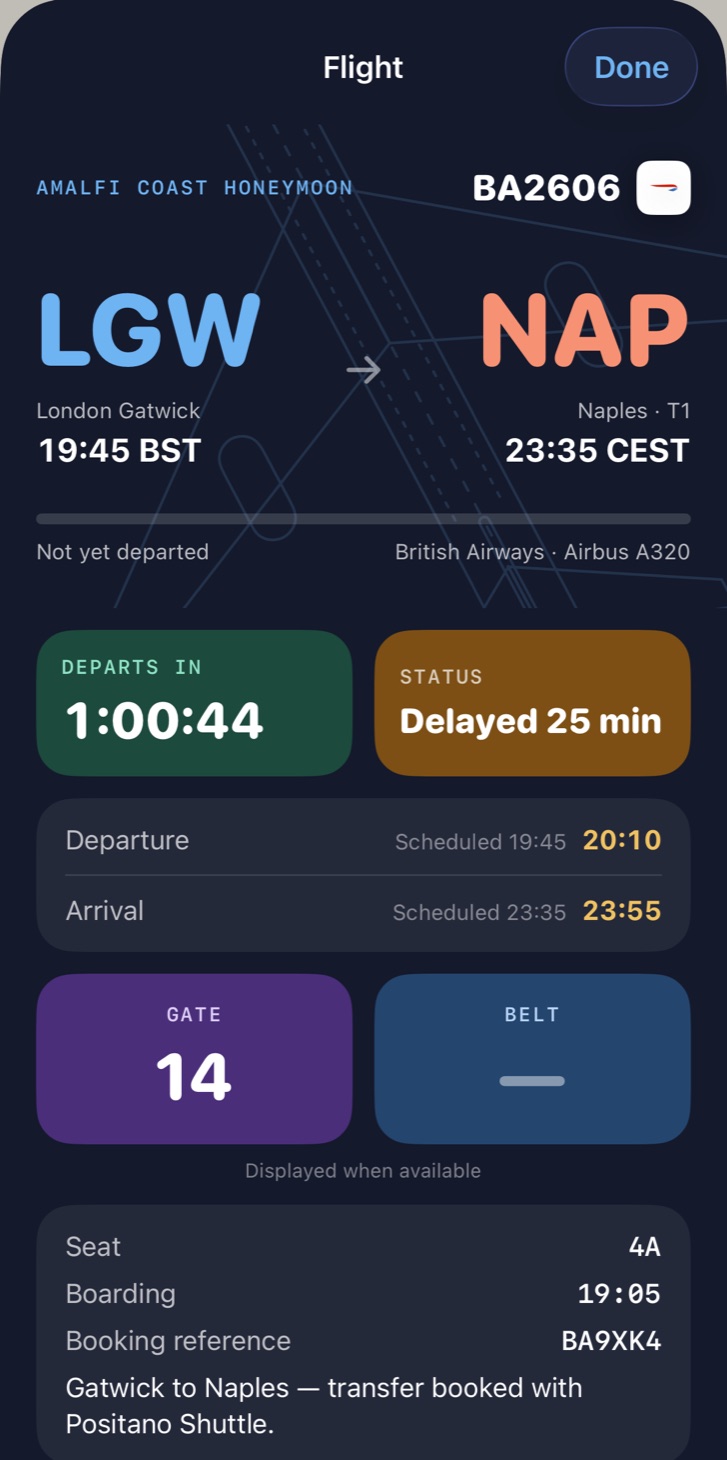
Watch it live
With Wandrr Pro the sheet shows live status, gate, terminal, delays and the baggage belt, and a status strip appears under the flight in your day's plan. Before you leave it also follows the plane coming in to fly you, so a late arrival shows before the delay is posted.
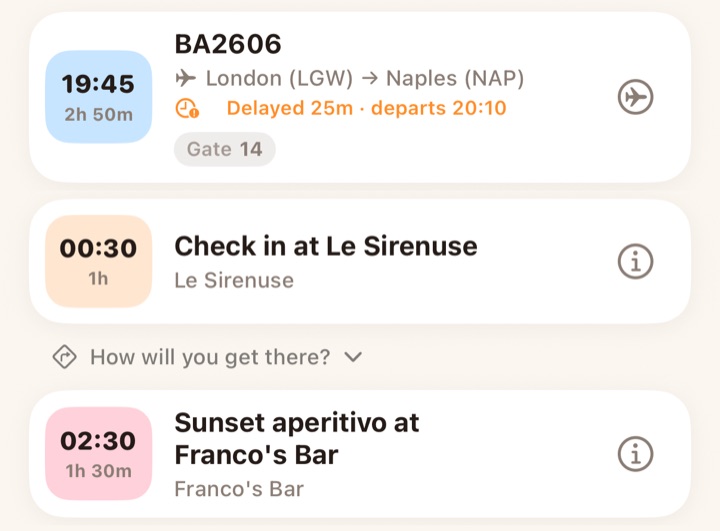
Hear about changes
Pro also sends an alert the moment something changes — a delay, a late incoming plane, a new gate, the baggage belt, and when you land.
Trip Tools
Map, wallet and everything else for the trip
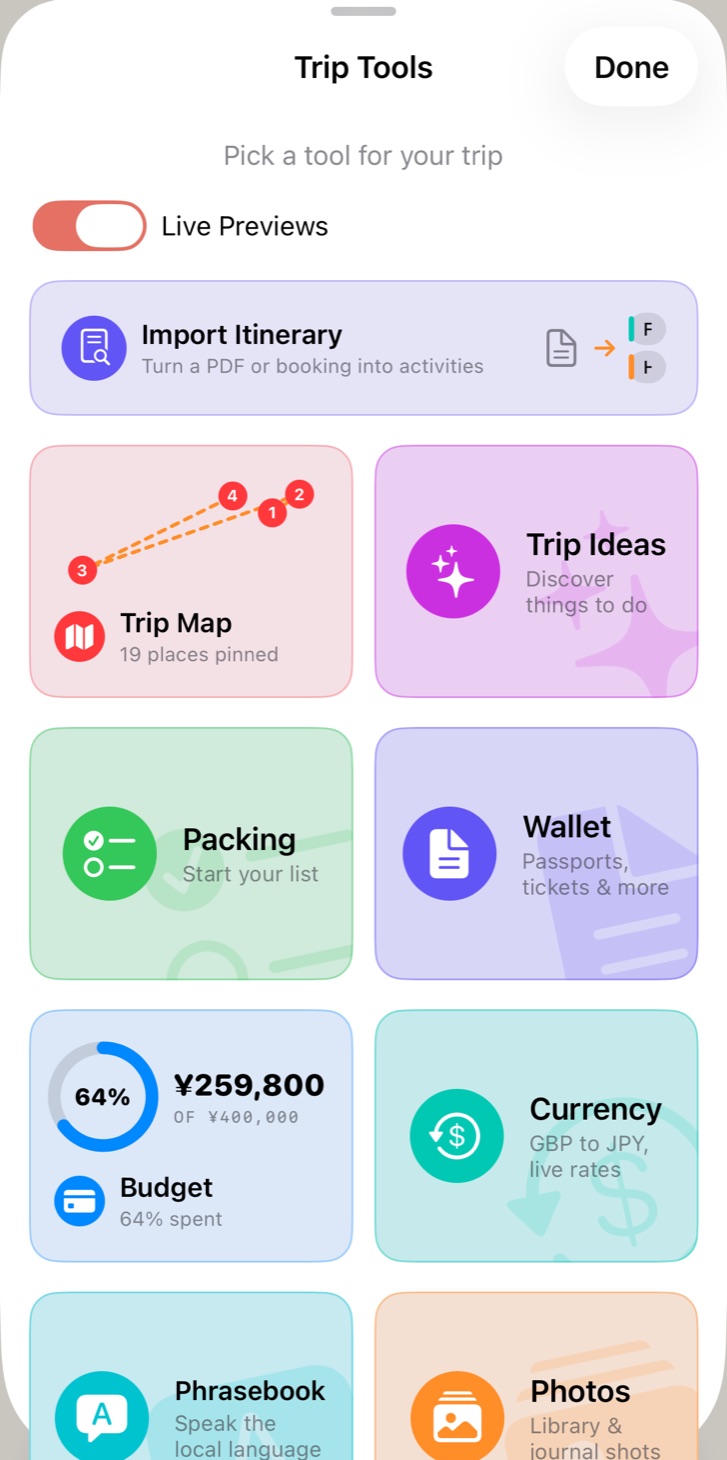
Open Trip Tools
Tap Trip Tools on your trip. The tiles reorder themselves as the trip goes — planning tools first beforehand, Near Me and Currency while you're there, Photos once you're home.
Turn on Live Previews
Flip the Live Previews switch above the tiles and each one shows a sliver of its own data — your route, the budget ring, packing ticks, the newest photos — instead of a plain colour.
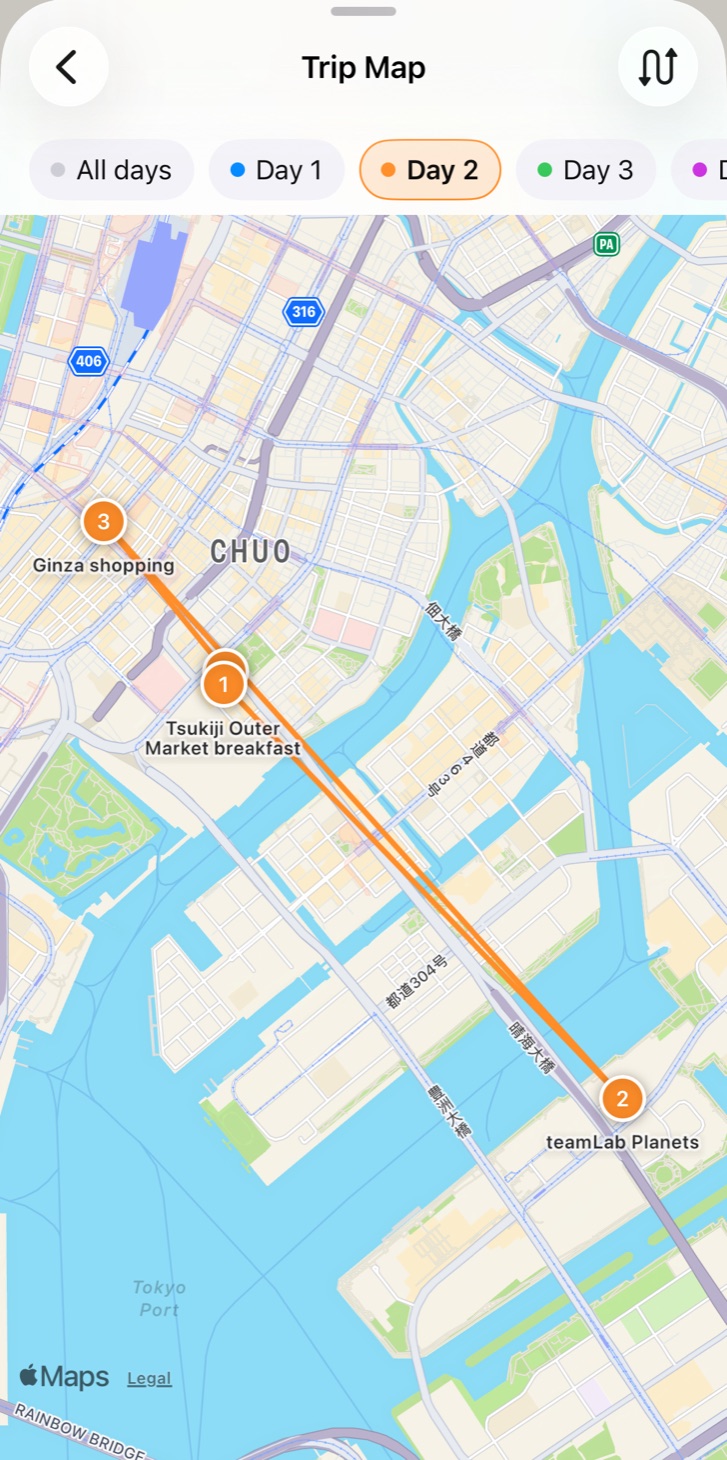
See the whole route
Trip Map numbers every stop with a pin and joins them day by day, with flights and trains dashed. Filter to one day to see just its stops.
Walk less
On a day with three or more pinned stops, tap Reorder by distance in Trip Map. Wandrr proposes a shorter visiting order and shows the distance saved before you accept.
Keep documents in the Wallet
Add passports, tickets, insurance and booking PDFs to Wallet from the camera, Photos or Files. Wandrr reads the key details for you to check, and can remind you — the evening before a ticket or check-in, or 30 and 7 days before a document expires.
Find what's around you
Near Me finds places close to where you're standing, and Trip Ideas keeps your AI suggestions for the destination.
Save links & ideas
Assign bookings to days, or save for later
Save links from anywhere
Share a hotel, restaurant or tour page to Wandrr straight from Safari's share sheet — next time you open Wandrr, pick the trip to file it into. Or add it directly in the trip's Links menu.
Assign to a day — or save for later
Give a link a day to see it in that day's plan, or keep it in Saved for later until you decide.
Turn a link into a plan
Long-press a saved link and tap Make an Activity. Wandrr reads the page, suggests a title, place and duration, and finds it on the map — check it, then add it to a day.
Attach links to activities
Booking confirmations and menus can live on the activity itself, so they're right there on the day.
Dream on idea boards
Collect, heart and agree together
Create a board
In the Ideas tab, start a board for a place you're dreaming about — long before anything is booked.
Pin ideas as postcards
Add places, notes and links as postcards. Save that restaurant from months ago and it'll be waiting.
Share it and heart together
Share a board via iCloud and heart the ideas you love — or tap the thumbs-down to say one isn't for you. When you both heart an idea it moves up to Agreed; in a bigger group it takes more than half of you, and each idea shows who's in. Pick the face you vote with — a Memoji, an emoji or a photo — from Your Avatar in the board's menu.
Turn agreed ideas into a trip
One tap copies the agreed ideas into any trip — the board keeps its own copy.
Track your spending
Budgets, receipts and currencies
Set a budget
Open Budget from your trip and set what you'd like to spend.
Add expenses in any currency
Spend in euros, yen or anything else — every amount stays in the currency you paid in, so nothing gets muddled by conversions. The Currency tool in Trip Tools uses live rates, or a custom one if your card gives you a different deal.
Scan receipts
Point the camera at a receipt and the amount is read for you.
Watch the total
The budget bar fills as you spend, and the breakdown shows where it went — by category and by day.
Split the bill
Add the people you're travelling with, then choose Paid by on an expense — it's shared between everyone unless you pick who. The Split section of Budget shows who owes whom; tap it for everyone's balance, per currency, and a summary to share.
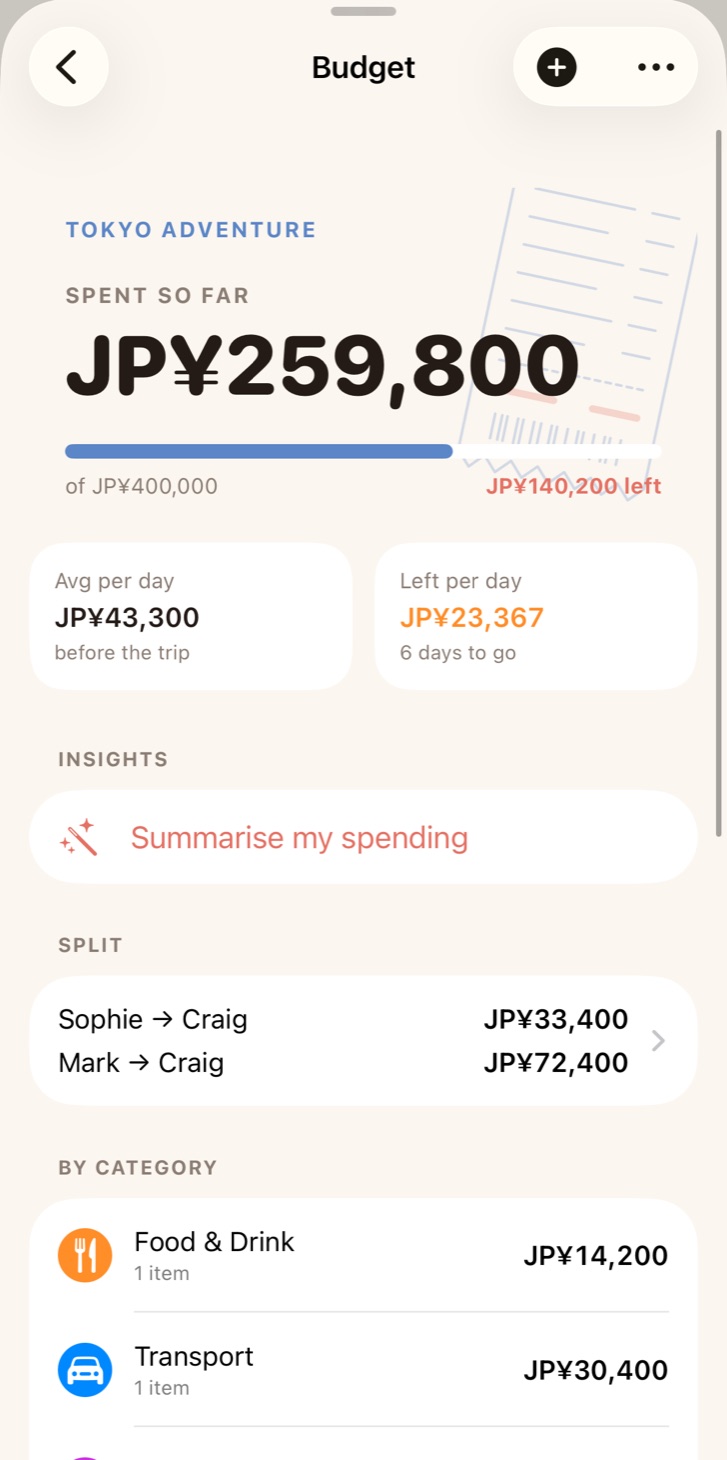
Read the insights
Once you've logged an expense, tap Summarise my spending under Insights for a short read on where the money is going.
See lifetime spending
Settings → Spending totals every trip, per currency. Tap a trip there to jump straight to its budget.
Import bookings from email
Confirmation emails and PDFs, read for you
Find your booking confirmation
Flights, hotels, trains, car hire, restaurants, tickets — confirmation emails and PDF attachments all work.
Share it to Wandrr
In Apple Mail, long-press the PDF attachment and share it to Wandrr. For the email itself, select its text, then tap Share on the selection.
Review what was found
Wandrr reads the reservation privately with Apple Intelligence. Check the details and tweak anything before saving.
File it into a trip
Next time you open Wandrr the import is waiting — pick the trip and everything lands on the right days.
Or import from inside the trip
In Trip Tools, Import Itinerary reads a PDF or a photo of a confirmation from Photos or Files. Untick anything you don't want, and the rest is added to your days.
Pack & speak like a local
Packing lists and the phrasebook
Generate a packing list
Open Packing on your trip and tap AI Generate — the list is tailored to where you're going and for how long. Add your own items anytime.
Tick things off
Tap an item to mark it packed. Swipe it right (or long-press) to change its quantity or category.
Keep favourites forever
Star the things you never travel without — medication, chargers, adapters — and they follow you to every future trip.
Learn the essentials
In Trip Tools, open Phrasebook and generate key local phrases with pronunciation. Tap the bookmark on the ones you'll actually use to move them into My Phrases, then tap ↻ for a fresh set of suggestions — it skips what you've already kept. Everything is saved with the trip so it works offline.
Say it, or show it
Tap any phrase to hear it spoken in the local language. Tap the expand button to fill the screen with it in large type — easier than pronouncing it across a counter.
Travel day, at a glance
Live Activity and widgets
It appears on its own
On trip days, a Live Activity appears on your Lock Screen and in the Dynamic Island — no setup needed.
Follow the day
It counts down to what's next, follows flights and trains between places, and in the evening gives you a gentle nudge to journal the day.
Add a countdown widget
The Trip Countdown widget shows the days to go on your Home or Lock Screen, and opens straight to the trip.
Safe Landings
Follow a friend or family member's flight
Follow a flight you're not on
Open the Safe Landings tab and tap +. Enter the flight number, the day it departs and who's flying — Wandrr looks up the rest. Got the name, number or day wrong? Tap ••• on the flight's card and choose Edit. Safe Landings is part of Wandrr Pro.
The same alerts as your own flights
You're told when the flight is delayed or retimed by a quarter of an hour or more, when the plane coming in to fly it is running late, when it lands and if it's cancelled — each notification led by the name you gave it. The gate and baggage belt are left out; they only matter at the airport. Only want to know they're down? Set the flight's Alerts to Landing only.
On your Lock Screen
Open Wandrr within three hours of the flight leaving and it goes up as a Live Activity: the route, a bar that fills as they cross it and a countdown to landing, kept up to date until they're down.
See where they are
Open a flight for its live times, a countdown to take-off or landing, how far along it is and the arrival terminal — handy if you're doing the pick-up. Pull down to refresh.
Nothing to tidy up
Follow up to eight flights at once. Each leaves the list by itself a day after it lands, or straight away with Stop Following.
Wandrr on your wrist
The Apple Watch app and complications
It comes with the app
Wandrr installs on your Apple Watch alongside the iPhone app — check the Watch app on your iPhone if it hasn't appeared. Your trip underway, or the next one coming up, syncs over on its own; there's nothing to set up.
One screen, top to bottom
The top shows what's next — a countdown before the trip, the leg you're on with its gate, or the plan coming up and how long until it starts. Scroll down for today's plans in order, then Bookings — every confirmation code, large enough to show at a desk — and All days.
Tap a plan for the details
Any plan opens to its times, place and a map with Directions. Flights and trains get a boarding card — seat, terminal or platform, boarding time — and with Wandrr Pro the live gate, delay and baggage belt, updated the moment your iPhone learns them.
Put it on your watch face
Add the Wandrr complication to a face or the Smart Stack. It counts down to the trip, then shows what's next and your gate, and lifts itself to the top of the Stack while you're travelling. Tap it to open that plan.
Works without your iPhone
The watch keeps the last trip it received, so everything still shows with your iPhone left in the hotel safe. Open the app on your iPhone to send across any edits.
Journal & look back
Moods, memories and your world map
Journal as you go
Open a day and add a journal entry — a mood, a few lines and photos. Tap a prompt if you're not sure where to start, or Suggest prompts from today's plan for ones about what you actually did.
Let AI write it up
Jot a few rough notes and tap Write it up with AI to turn them into a tidy entry. Not what you meant? Undo brings your own words back.
Look back in Memories
Finished trips gather in the Memories tab. Open one for a recap of its photos, journalled days and trip stats — and tap Write my trip story for a short story of the trip, drawn from your plans and journal.
Scratch off the world
Tap the globe in Memories for your world map. Countries you've visited are coloured in on a globe you can spin and pinch. A newly visited country arrives under foil — rub it away, or tap Reveal to clear it for you. Can't spot it? Tap Show and the globe turns to bring it to the centre.
Replay your flights
Tap the plane on the world map and a little aircraft flies every trip in order, leaving its routes behind. Set your Home city in Settings so the journeys start and end in the right place.
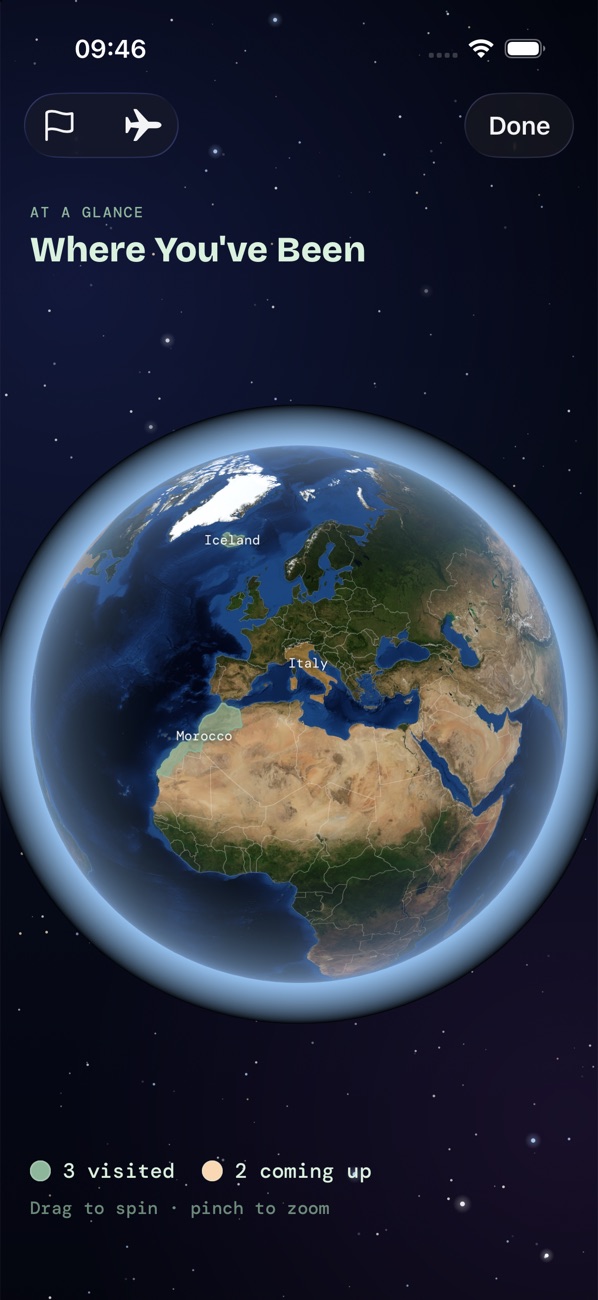
Siri, Calendar & iPad
Wandrr in the rest of your devices
Ask Siri
Say "What's next in Wandrr", "Add an expense in Wandrr" or "Open my trip in Wandrr". The same three actions are in the Shortcuts app for your own automations.
Search from the Home Screen
Trips and their plans appear in Spotlight — swipe down on the Home Screen, type a trip or a restaurant, and tap to open it in Wandrr.
Put the trip in your calendar
In your trip's ⋯ menu, open Share and tap Add to Calendar. The trip and each plan go into a Wandrr calendar of their own; tap Update in Calendar after changing the itinerary, or Remove from Calendar to clear it. Export .ics File works with any other calendar app.
Hand over a copy
The same Share menu has Share as PDF — the whole itinerary as a document for someone who doesn't use Wandrr. It's part of Wandrr Pro.
Spread out on iPad
On iPad your trips, boards and memories sit in a sidebar with the one you've opened beside it, and it all keeps working in Split View and Slide Over.
Choose your look
Souvenir, Bento and Evergreen
Open the theme picker
Tap the paintbrush in the toolbar, or open Settings → Theme.
Pick a personality
Souvenir is a scrapbook of tape and handwritten notes. Bento is modular, sunny and photo-led. Evergreen is dark, editorial and calm. The whole app restyles instantly.
Dress the Lock Screen too
In Settings, choose whether the Travel Day Live Activity matches your app theme or keeps one look of its own.
Take your trip offline
What works with no signal
Your plans live on your phone
Trips, day plans, journals, travel documents, packing lists and expenses are all stored on your device — view and edit them anywhere, and changes sync when you're back online.
Generate before you go
AI ideas and your phrasebook are saved with the trip once generated — make them before the flight and they're yours offline.
Download offline maps
Apple Maps and Google Maps can both download a city for offline use — search your destination there and tap Download on its place card. Wandrr's Directions buttons hand off to your maps app, so navigation keeps working without signal. Trips about to start show a tip for this, with a how-to for your preferred app.
What still needs a connection
Weather, live currency rates, travel-time estimates and first-time photo loads need the internet. They pick up again automatically once you're connected.